

Use Dynamic Fields to calculate field values automatically instead of entering fixed values manually.
In Easy Templates, this is done with Expressions. An expression can use the current date, template variables, other field values, or values from parent and root issues.
Info: Dynamic values are calculated during issue creation
A Dynamic Field is a field that uses an Expression instead of a static value.
Expressions are evaluated by Easy Templates during issue creation.
Supported field can use either:
-
a regular value
-
an expression
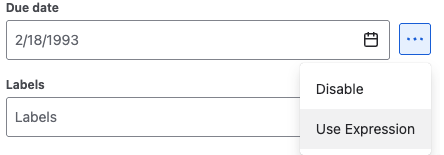
When expression mode is enabled, the standard field input is replaced with an expression editor.
Use Cases
-
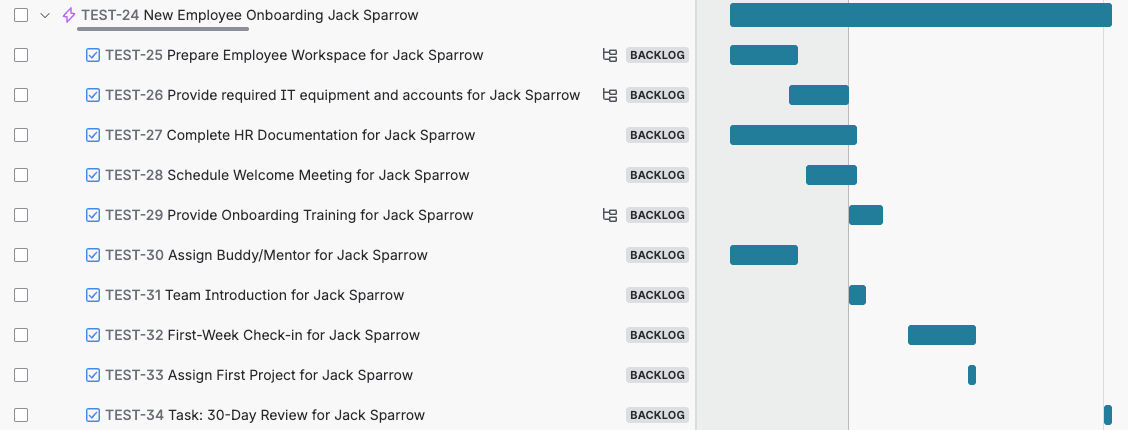
Employee onboarding — Use one Start Date variable to automatically schedule account setup, equipment delivery, manager intro, training sessions, probation check-ins, and first-review milestones across all related tasks.
-
Marketing campaign planning — Set a single Launch Date and calculate all campaign steps backward or forward from it, such as content creation, design review, approvals, ad setup, QA, publishing, and post-launch follow-up.
-
New client onboarding — Drive the whole onboarding workflow from a chosen Kickoff Date or Go-Live Date, so discovery, access requests, configuration, training, and handover tasks are all scheduled automatically.
-
Compliance and audit preparation — Build repeatable templates where deadlines for evidence collection, policy review, control checks, internal review, and final submission are calculated from an Audit Date or reporting deadline.
-
Project delivery / implementation plans — Create structured project templates where child tasks inherit and calculate dates from the parent issue, making it easy to manage phased implementations, rollout steps, testing, sign-off, and launch readiness.
How to enable Expressions
In the template issue form:
-
Open the field menu using the
...button. -
Select Use expression.
-
Enter the expression.
-
Save the template.
When enabled, the field becomes a Dynamic Field and its value is calculated automatically during issue creation.
Supported references
Expressions can use the references below.
Current date and time
Use now to work with the current date and time.
now
now()
Example:
now.plusDays(1)
Template variables
Use variables() or the shorter var() form to reference a template variable by name.
variables("Start Date")
var("Start Date")
Example:
var("Start Date").plusWeeks(1)
Current issue fields
Use fields() to reference another field from the current issue being created.
fields("Due Date")
fields(customfield_10015)
Example:
fields("Start Date").plusDays(3)
Parent issue fields
Use parent to reference values from the created parent issue.
parent.fields("Due Date")
parent.duedate
Example:
parent.fields("Due Date").plusDays(var("Buffer Days"))
Root issue fields
Use root to reference values from the top-level issue in the created structure.
root.fields("Opening date")
Example:
root.fields("Opening date").minusDays(fields("Lead time"))
Supported date functions
Expressions support the following date and time adjustments:
-
plusYears()/minusYears() -
plusMonths()/minusMonths() -
plusWeeks()/minusWeeks() -
plusDays()/minusDays() -
plusWorkingDays()/minusWorkingDays() -
plusHours()/minusHours()
Example:
now.plusWorkingDays(5)
Example expressions
Set a date one week after a variable
var("Start Date").plusWeeks(1)
Set a child issue date based on the parent due date
parent.fields("Due Date").minusDays(2)
Use a root issue field and current field together
root.fields("Opening date").minusDays(fields("Lead time"))
Set a date relative to today
now.plusDays(5)
Note: Quotes, case sensitivity, and optional parentheses
-
Single and double quotes both work:
-
fields("Due Date") -
fields('Due Date')
-
-
Field names and variable names are case-insensitive.
-
Some references support optional parentheses:
-
now.plusDays(1) -
now().plusDays(1)
-
Supported field types
Dynamic Fields currently support:
-
date
-
date-time
-
string
Limitations
Expressions for Dynamic Fields do not support:
-
referencing sibling issues
-
referencing child issues
-
using
parenton a root issue -
circular references between fields
Tip: Keep expressions simple and reusable
To keep Dynamic Fields easy to maintain:
-
use clear variable names
-
keep expressions simple
-
test expressions before using them in larger templates
Related examples
now.plusDays(7)
var("Launch Date").minusWorkingDays(3)
parent.fields("Due Date").plusDays(var("Buffer Days"))
root.fields("Opening date").minusDays(fields("Lead time"))
Using Dynamic Fields with Jira Automation
You can also combine Dynamic Fields with Jira Automation by passing variable values and dates through your Automation payload and letting Easy Templates evaluate the expressions at issue creation time.
In your Automation rule, use Send web request to call the template’s webhook URL (as described in Automation & REST API), and fill in template variables directly in the JSON payload - either as fixed values or using Jira smart values like {{now}}, {{issue.duedate}}, or {{issue.customfield_XXXXX}}.
These values will be injected into the expression engine, so functions such as var("Start Date").plusWorkingDays(5) or parent.fields("Due Date").minusDays(var("Buffer Days")) can use data calculated or provided by Automation. For more complex date logic, you can rely on Jira’s built‑in date and time smart values documented at https://support.atlassian.com/cloud-automation/docs/jira-smart-values-date-and-time/
Summary
Dynamic Fields let you calculate field values automatically during issue creation.
To configure a Dynamic Field, use an Expression. Expressions are useful for dates, variables, and values based on parent, root, or current issue fields.
For any questions or feature requests contact us via Customer Portal