

Experimental feature: Make changes on a copy of the template first.
Prerequisites
-
Project admin permissions in both source and target projects
-
Access to Manage Templates
-
Project ID and issue type IDs for source and target
Once a template is created, it’s linked to an issue type, which in turn is linked to a base project.
You can move the template from one base project to another. This is useful when migrating from Team-managed to Company-managed. Team-managed templates can’t be shared across projects; instead, move them and remap the issue types.
How to move/remap template to another project:
-
Go to Manage Templates
-
Click “..” dot → Remap Experimental
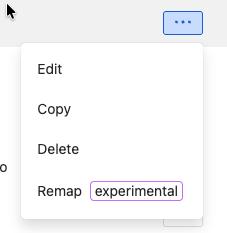
-
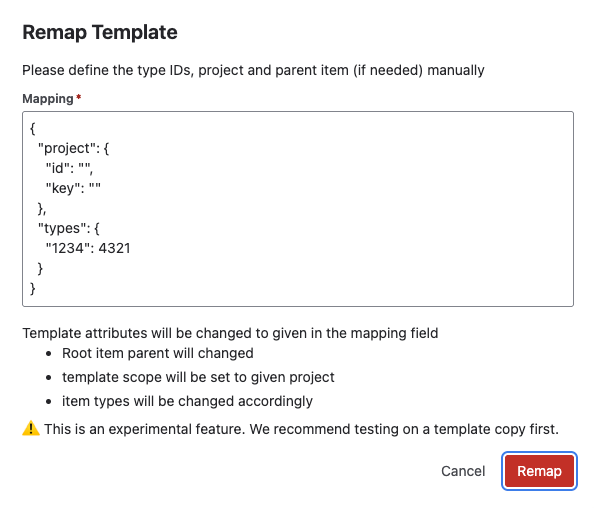
Fill the configuration
-
Set target project ID, Key
-
Set all issue types ID’s mapping from old to new one *
-
-
Click “Remap”
-
Test template
How to find Project ID
-
Type in the browser https://your-site-name.atlassian.net/rest/api/3/project/search
-
Set the actual site name
-
-
Get JSON response of all available projects on your Jira instance
-
Find
-
"id": "10288" -
"key": "AKC"
-
-
Put into Remap config
How to find Issue Types IDs
-
Type in the browser https://your-site-name.atlassian.net/rest/api/3/project/KAN
-
Set the actual project KEY
-
-
Get JSON response of all basic project info including issue types
-
Find issue type name, e.g.
"name": "Task" -
Find issue type ID, e.g.
"id": "10005" -
Put into Remap config
-
You need to do that for both: source and target project
For any questions or feature requests contact us via Customer Portal